Arrive at your scheduled time with reliable transportation. Late arrival puts launch and the entire team behind.
 MERICA DELIVERY SERVICES
MDS NEW DRIVER ORIENTATION
Every stop.
The right decision.
The rules, behaviors, and real MDS lessons you need to work safely, protect the customer, and finish every route the right way.
Begin orientation →10 modules · Final certification required
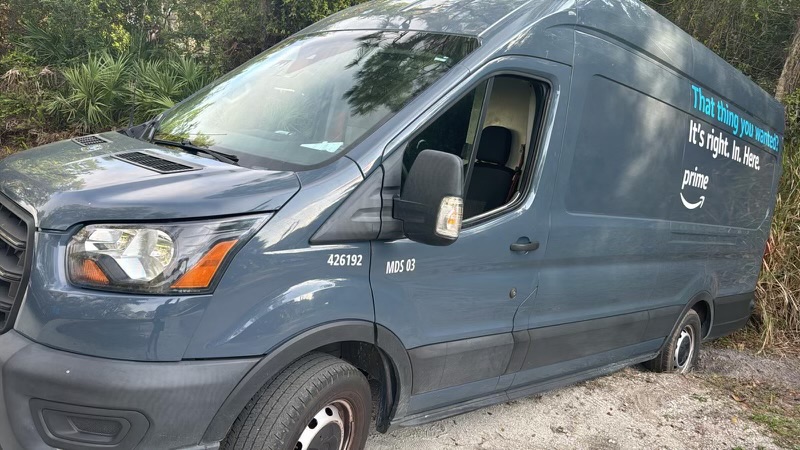
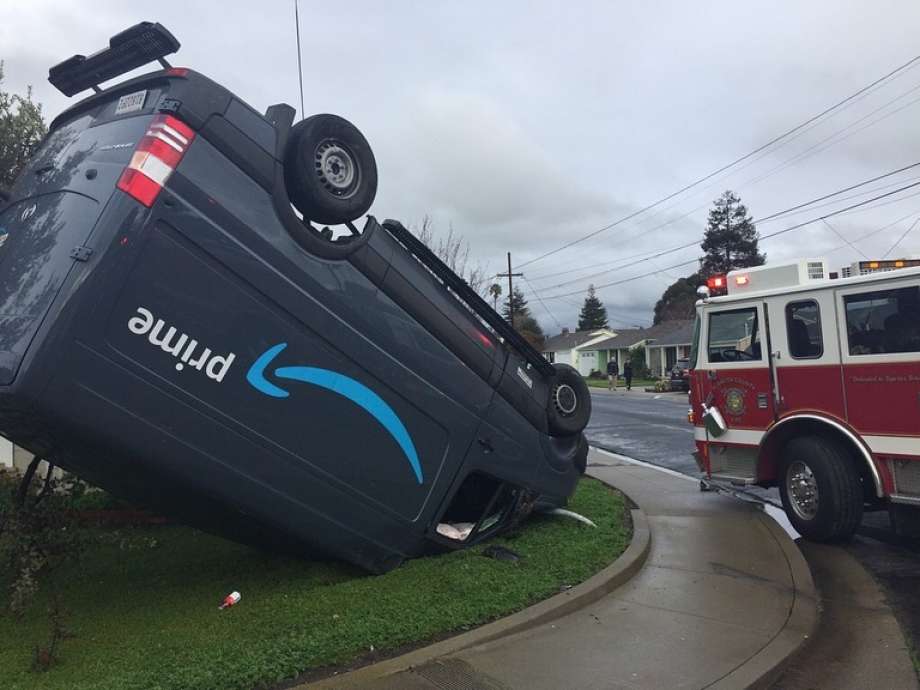
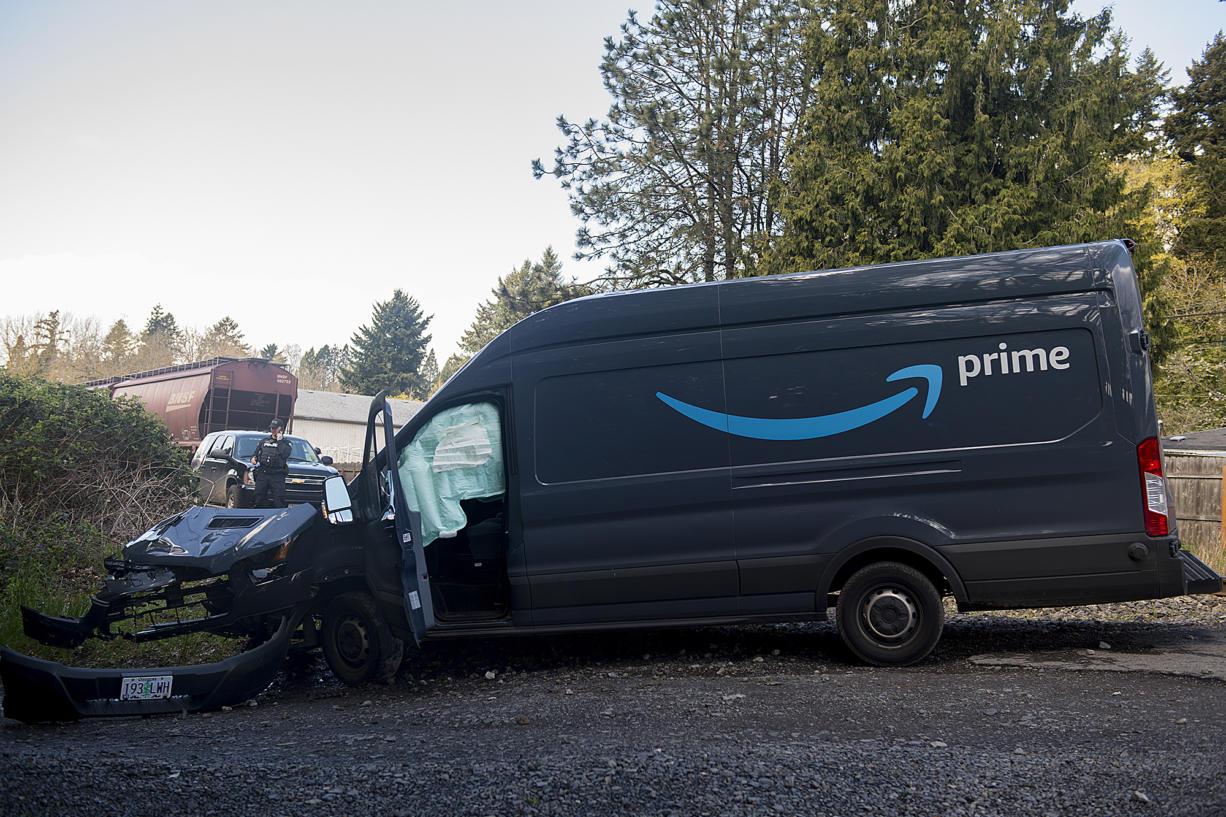
REAL MDS INCIDENTOne decision can stop a route, damage a van, and put a driver at risk.
01
Safety over speed
No package, route time, or customer request is worth an injury, collision, or preventable tow.
02
Stop and communicate
If you are unsure, park safely and contact Dispatch before making the move.
03
Do the standard work
The right scan, contact, photo, punch, and return process protect you and the team.
YOUR TRAINING PATH
Ten modules.
One safe standard.
01→02→03→04→05→06→07→08→09→10→
MDS Standards
Showtime, communication and conduct
Make the Safe Call
Driveways, gates, clearance and incidents
On-Road Safety
The five behaviors that prevent collisions
Dog Safety
Scan, contact, retreat and report
Delivery Quality
Right address, right scan, secure location
Photos on Delivery
Photos that actually help customers
Packages & Pickups
Rescues, RTS, missing packages and pickups
Timekeeping
Actual hours, lunches and Flex compliance
PTO & Attendance
How to request time off correctly
Final Certification
Quiz, acknowledgment and submission
01 · MDS STANDARDS
Reliable. Ready.
Professional.
Your route begins before the first stop. Arrive ready, communicate early, and return every company item at the end of the shift.
Use Dispatch for delivery issues, rescues, route concerns, accidents, and unsafe conditions. Call when all deliveries are complete and be prepared to assist.
No personal calls on company phones. No smoking, vaping, tobacco, or urinating in vans. Keep the van clean and return the phone, keys, fuel card, and drive pack.
Wear the complete uniform, keep music respectful, stay off personal calls at customer locations, protect property, and treat every customer professionally.
02 · THE DECISION RULE
If it looks wrong,
don’t drive into it.
STOP
Park in a safe, legal position before assessing the hazard.
CLEARANCE
Avoid all overhangs, carports, low roofs, tree limbs, wires, signs, and other overhead hazards. Never assume the van will fit.
BACKING
Avoid reversing whenever possible. If backing is necessary, stop and GOAL—Get Out And Look—before moving.
DOCUMENT
Take clear photos of the access issue or unsafe condition.
CONTACT
Call Dispatch and follow the approved customer/Driver Support process.
CODE IT
Use the correct Delivery App exception or RTS reason code.
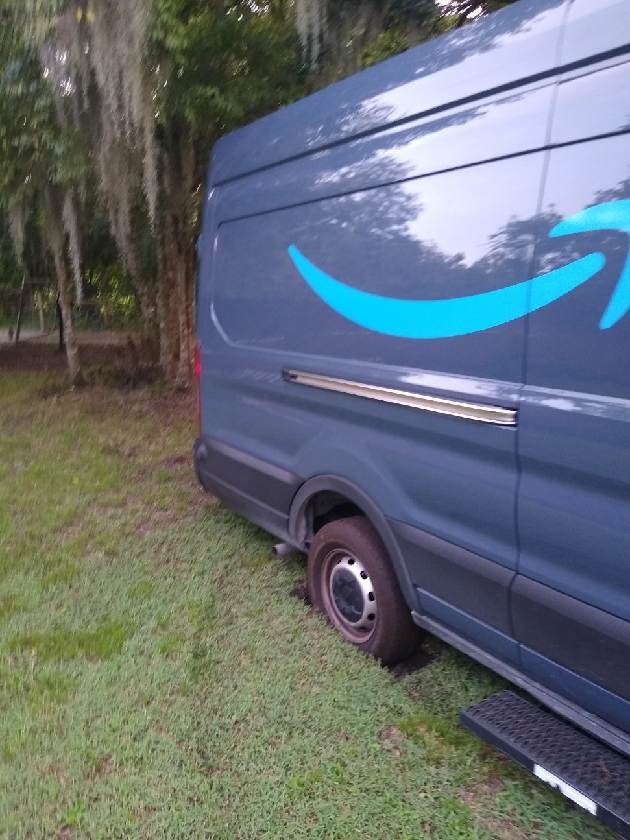
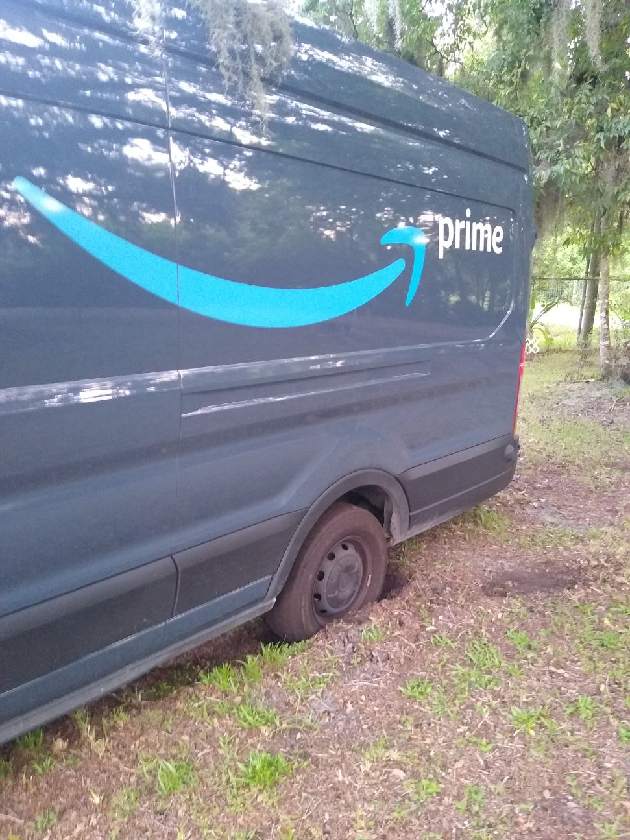
NEVER DRIVE ONDirtGrassMudSoft sandUnpaved drivewaysQuestionable shoulders
PROPERTY DAMAGE PREVENTION
Protect the van.
Protect the property.
Avoid every overhang and low-clearance hazard in neighborhoods, apartment communities, and customer properties. Carports, entrance canopies, low roofs, tree limbs, wires, and signs can damage the roof or upper body of the van.
Set up the stop so you can leave going forward. Never back simply to save walking distance or time. If you are unsure, stop and choose another safe position.
If reversing is unavoidable, put the van in park, get out, and physically inspect the entire path. Check both sides, the rear, overhead clearance, blind spots, and changing hazards.
Watch for mailboxes, posts, gates, fences, landscaping, parked vehicles, rooflines, and other property. Cameras and mirrors assist you, but they do not replace getting out and looking.
WHEN CLEARANCE IS QUESTIONABLE: STOP.Park safely, walk the package when safe, contact Dispatch when necessary, and never force the van into a tight space.
03 · ON-ROAD SAFETY
Five behaviors determine
your collision risk.
SEATBELT
Wear it anytime the vehicle is moving. Never sit on it, buckle it behind you, or remove it early.
SPEED
Obey the posted limit. Slow down for conditions; never try to recover route time by speeding.
DISTRACTION
No phone handling while driving. Set navigation only when safely parked.
FOLLOWING
Maintain space and increase it in rain, traffic, darkness, or poor visibility.
SIGNS & SIGNALS
Make a complete stop before the line. Never run a red light or force a yellow.
NETRADYNE
The camera is a safety system—not a substitute for judgment.
Full stops, safe speed, proper following distance, seatbelt use, and distraction-free driving are expected on every trip. Amazon’s DSP Safety Dashboard is the source of truth for scorecard safety events.
04 · DOG SAFETY
Hear it. See it.
Take it seriously.
Safety takes priority over completing the delivery. A dog does not need to look aggressive to create an unsafe stop.
BEFORE EXITING
Check the Paw Print icon and delivery notes. Scan for fences, dog doors, bowls, toys, worn paths, barking, and warning signs.
MAKE PRESENCE KNOWN
From a safe distance, tap the horn or announce “Amazon package delivery.” Alert—do not provoke—the dog.
CONTACT CUSTOMER
Ask the customer to secure the dog or provide an alternate location. Call, then text if unanswered.
IF APPROACHED
Do not run or turn away. Avoid eye contact, back away slowly, use a package or object to create distance, and use firm commands.
CANNOT MAKE SAFE
Select Unable to Deliver → Unsafe Due to Dog and return the package. Report a new dog in the app to warn the next driver.
REPORT EVERY DOG INCIDENT IMMEDIATELY
For injury or immediate danger: call 911 if needed, contact Dispatch, and use Emergency Help in the Delivery App.
05 · DELIVERY QUALITY
Right address. Right scan.
Right location.
VERIFY
Compare the app, package label, and physical address. At group stops, check every label—do not assume all packages go to the same address.
FOLLOW
Read customer notes. Follow them only when safe and secure. Contact the customer before changing the delivery location.
PLACE
Use a location hidden from the street, low traffic, and protected from weather. Never use a mailbox, open lobby, outside gate, or exposed yard.
SCAN
Select the truthful delivery reason. Household Member is only for a package directly handed to a recipient—never use it to bypass POD.
CONFIRM
Complete the photo and swipe at the delivery location. Make sure the customer can actually find what you delivered.
DSBPrevents “delivered but not received” and lost-package defects.
DC DPMORewards successful completion and correct contact/RTS work.
CDFReflects what customers report about the delivery experience.
06 · PHOTO ON DELIVERY
A good photo answers:
“Where is my package?”
- Show the package and enough surroundings to identify the final location.
- Make it bright, clear, in focus, upright, and not too close.
- Keep all people, pets, body parts, license plates, names, addresses, and home interiors out.
- For simultaneous deliveries, show all packages in the same photo.
- Review the image and tap Retake Photo when needed.
- If the camera/app fails, use Help → Unable to Take Photo and select the correct reason.
BOX
✓ CLEAR · CONTEXT · NO PEOPLEBOX
× TOO CLOSE · DARK · NO CONTEXT07 · PACKAGES & PICKUPS
Every package must have
a clean chain of custody.
Scan every transfer
The receiving driver scans each package and physically receives it. Never rely on a verbal count or combine packages without a virtual and physical match.
Use Package is Missing
If it is on the itinerary but not in the van, mark it missing. If it is found later, use Retry Delivery and complete the correct scan.
Return it correctly
Use the correct reason code, complete Self-Service Return when available, place it in the proper bin, and verify no packages remain in the van.
Call Driver Support
Request the status update at the stop. Refresh the itinerary 10–15 minutes later and verify it actually changed before route closeout.
Attempt every stop
Stay within the assigned time and geofence, scan every package, use the correct exception, and follow contact compliance.
Nothing stays overnight
Return all pickup and undelivered packages the same day. Complete an itinerary and physical van check before leaving.
08 · ACTUAL HOURS WORKED
Your timecard must tell
the truth—every day.
ADP is the payroll source of truth. Flex is an operational app, but every Flex activity must happen while you are properly clocked in.
Clock into ADP→Log into Flex→Work route→Log out of Flex→Clock out
Take and record the full required unpaid lunch. Do not perform any work while clocked out.
Review AM/PM, start, lunch, and end punches every day. Correct errors and reapprove immediately.
Do not log into Flex, load, deliver, rescue, fuel, return equipment, or complete job tasks before clock-in or after clock-out.
Maximum 12 hours per day, 60 hours in a rolling 7 days, 6 consecutive days, and at least 10 hours off between shifts.
🚨 ALL HANDS — LUNCH BREAK & TIMECARD REMINDER 🚨
Clock out only when you actually stop working.
Delivery records are showing packages delivered during recorded lunch periods—for example, a package delivered at 4:05 PM while the driver’s timecard shows lunch began at 4:00 PM. This is not allowed. You cannot deliver packages or perform any work while off the clock.
⏰ CLOCK OUT IN REAL TIMEFinish your last delivery first. Notify Dispatch, then clock out when your lunch actually begins.
🍽️ STOP ALL WORKOnce clocked out, stop delivering and performing all job duties for the full lunch period.
⏱️ CLOCK BACK IN FIRSTClock back in before resuming deliveries or any other work.
🚫 NEVER AUTO-ENTER LUNCHDo not enter 4:00–4:30 PM unless that is when you truly stopped and resumed work.
📲 NOTIFY DISPATCHContinue notifying Dispatch when you begin your lunch break.
✅ VERIFY YOUR TIMECARDYour punches must match your actual delivery activity. Correct discrepancies immediately.
Example: If you are still delivering at 4:05 PM, your timecard cannot show that lunch began at 4:00 PM. Finish the delivery, notify Dispatch, and clock out when lunch actually begins.
Managers & Dispatch: Reinforce this requirement with your teams and address discrepancies as they occur.
09 · PTO & ATTENDANCE
Request time off
the right way.
- Plan ahead.Submit PTO at least two weeks before the requested date. Requests with less notice may be denied.
- Open the PTO form.Use the official Merica Delivery Services PTO Request Form linked on this page.
- Enter details.Complete every required field, choose the correct requested date(s), and verify your information before submitting.
- Wait for approval.A submitted request is not approved until management confirms it. Do not make nonrefundable plans before approval.
- Check your schedule.Review Amazon A to Z every Friday and report possible errors by 12 noon Saturday.
- Emergency call-out.Follow the call-out policy below. Calling out does not automatically make an absence excused.
OFFICIAL PTO FORM
Request Time Off
SCAN TO REQUEST PTOOpen your phone camera and point it at this code.
Submit PTO Request ↗Submission does not equal approval. Wait for management confirmation and continue checking your schedule.ATTENDANCE REQUIREMENT
Call-Out Policy
Notify management as soon as you know you will be unable to report for a scheduled shift.
Whenever possible, notify management the day before your scheduled shift.
Provide at least two hours’ notice before your scheduled start time. For weekday shifts, notification before 7:00 AM is strongly preferred.
Contact management directly through the approved call-out process. Telling another employee does not count as proper notice.
Weekend staffing is limited, so weekend call-outs are reviewed closely. Repeated, unexcused, or improperly reported weekend absences may result in corrective action, loss of preferred or regular scheduling, reduced scheduled days, suspension, or other discipline.
Emergencies and protected absencesEmergencies and legally protected absences will be evaluated appropriately. Supporting documentation may be requested when permitted by law.
DRIVER FAQ
Answers before you need to ask.
What if I cannot safely reach the delivery location?+
Park the van safely. Photograph the access issue, contact Dispatch, attempt the approved customer contact process, and use the correct exception code. Never improvise with the van.
What if the customer does not answer?+
For contact-compliance situations, call and allow the phone to ring at least 12 seconds. If there is no answer, send a follow-up text. Call Driver Support if the number is disconnected, unavailable, or you do not feel safe making contact.
What if I am delivering between 8 PM and 8 AM?+
Do not contact the customer during those hours for a failed delivery. Contact Driver Support and follow Dispatch direction.
What if my lunch punch is under 30 minutes?+
Correct the punch in ADP and notify management. Routes are designed to include the required full 30-minute lunch.
What if my clock-out time does not match Dispatch?+
Do not guess. Verify the return time with management, correct ADP, and reapprove your timecard.
When do I check my weekly schedule?+
Every Friday in Amazon A to Z. Report a possible error by 12 noon Saturday so management can review it.
What if the Delivery App will not update a package status?+
While at the stop, call Driver Support. Refresh the itinerary 10–15 minutes later and verify the update. Tell Dispatch about anything still showing incorrectly before returning to station.
What if I find a damaged package?+
Do not deliver it. Mark the correct damaged status, protect other packages if it is leaking, and return it through the correct RTS process.
What if the customer asks me to put a package in a mailbox?+
Never place a package inside or on top of a USPS mailbox. Use an approved secure delivery location or contact the customer.
What if I am running behind?+
Keep delivering safely and contact Dispatch. Never speed, skip required safety steps, run a light, follow too closely, or make a risky access decision to gain time.
10 · FINAL CERTIFICATION
Show that you’re
ready for the route.
Score at least 80%, sign the acknowledgment, and submit the completed result directly to management.
0/14questions answered